Invoicing
You can only access this module if you're an admin.
This module allows you to create invoices. The invoices you create are stored in the platform and are downloadable as PDFs. You can also choose to create an invoice which supports uploading into the RO e-factura system.
FAQ
Q: Am I automatically connected to SPV?
A: No. Only a person authorized in SPV on behalf of your company can access the integration URL from the red banner, using the SPV authorized certificate (see below).
Q: How do I get access in SPV?
A: I need to follow these steps:
- I get a digital signature (e.g. from DigiSign)
- I get a confirmation certificate for ANAF (e.g. from DigiSign)
- I create an account in SPV based on the certificate obtained (see instructions or video)
- I authorize the application to send invoices on my behalf by accessing the URL from the red banner (see image below)

Q: Is the e-factura generated automatically?
A: No. You need to check the "E-factura" checkbox to generate an invoice that can be uploaded into the RO e-factura system.
Q: If I check the E-factura checkbox, will it be uploaded automatically in RO e-factura?
A: No. Only an invoice that can be uploaded into the RO e-factura system will then be generated. To actually upload the invoice into the RO e-factura system, after saving the invoice, the "Upload in e-factura" button will be used.
Q: Can I copy a saved invoice?
A: Yes. By using the copy button to the left of the saved invoice.
Q: Can I edit an already saved invoice?
A: No. You can delete it if you saved it in the same day and it was not uploaded in the RO e-factura system. Then you can create a new one.
ATTENTION: For the e-factura system integration you need an account in SPV. The ANAF documentation specifies the following:
To use and access the RO e-Factura system, economic operators must be registered in the Private Virtual Space (SPV).
For registration in the Private Virtual Space, economic operators can access the information available on the ANAF website.
Usually, your accountant has an account registered at ANAF and can help you with this part.
All you have to do is copy and send the URL (see image below) to the person with access in SPV. They will access the URL (using a token already registered at ANAF) and authorize the application to send invoices on your behalf.
Of course, you might also have an account and an authorized token, in which case you can do the procedure yourself.
ATTENTION: Each CUI/CIF needs a separate authorized token in SPV.
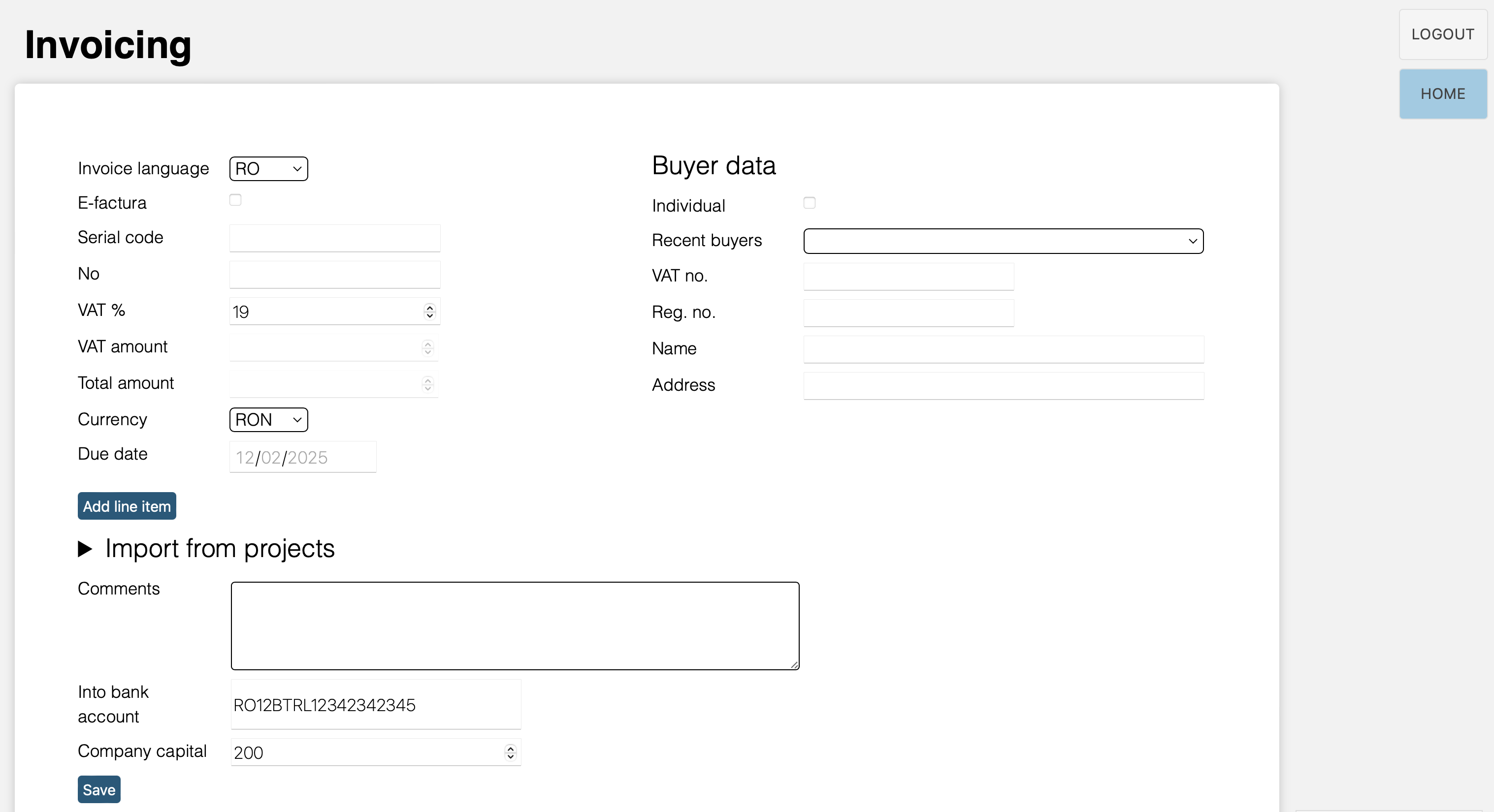 NOTE: If you are a VAT registered company, you will have VAT fields available.
NOTE: If you are a VAT registered company, but the invoice should not contain VAT (e.g. you won't pay VAT if you create an invoice for a UK customer), you can set the VAT rate to 0 and do not check the "E-factura" checkbox.
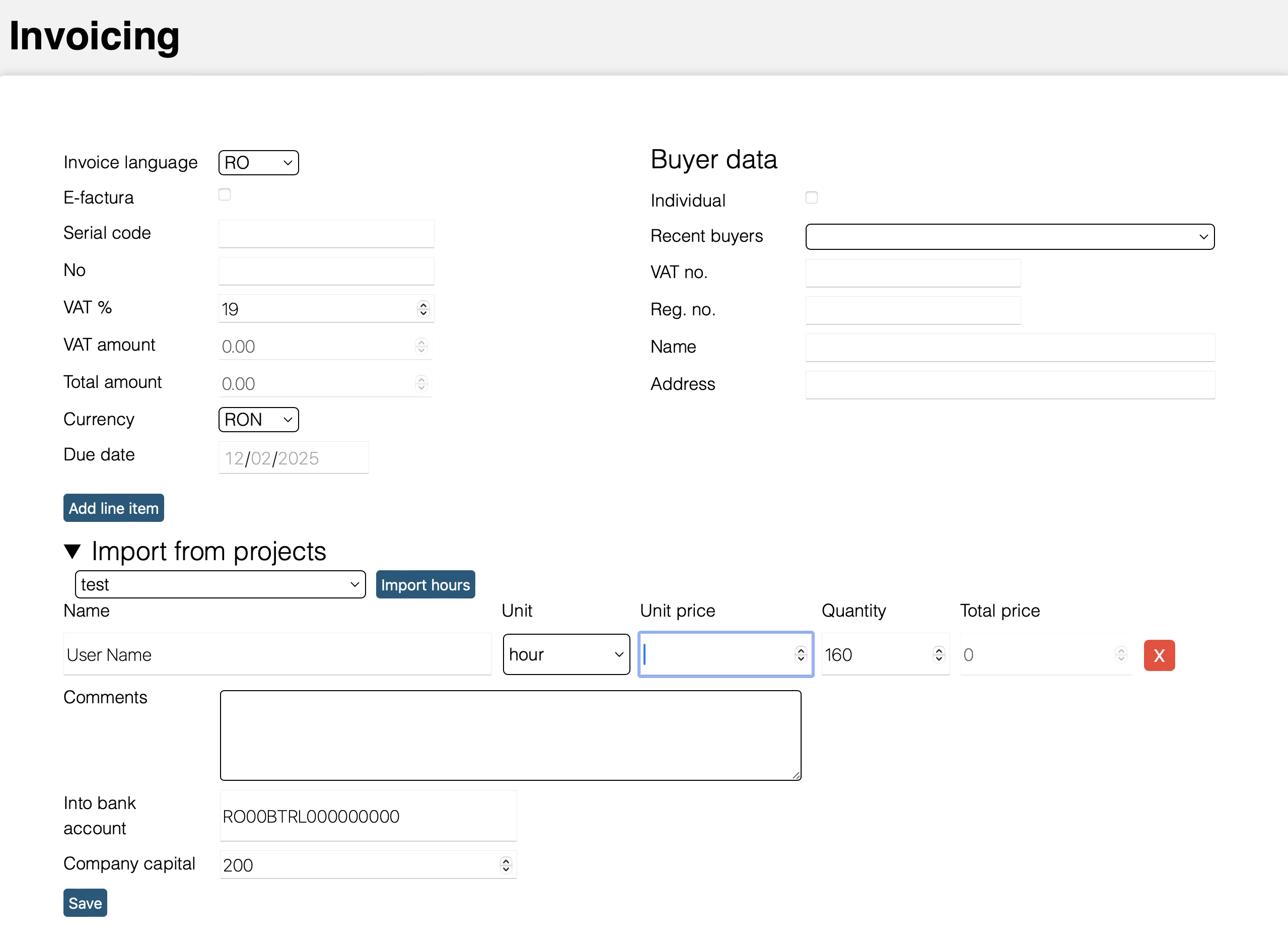
Add line items manually, using the "Add line item" button. Filling in the line item unit price and quantity will automatically calculate the invoice totals.
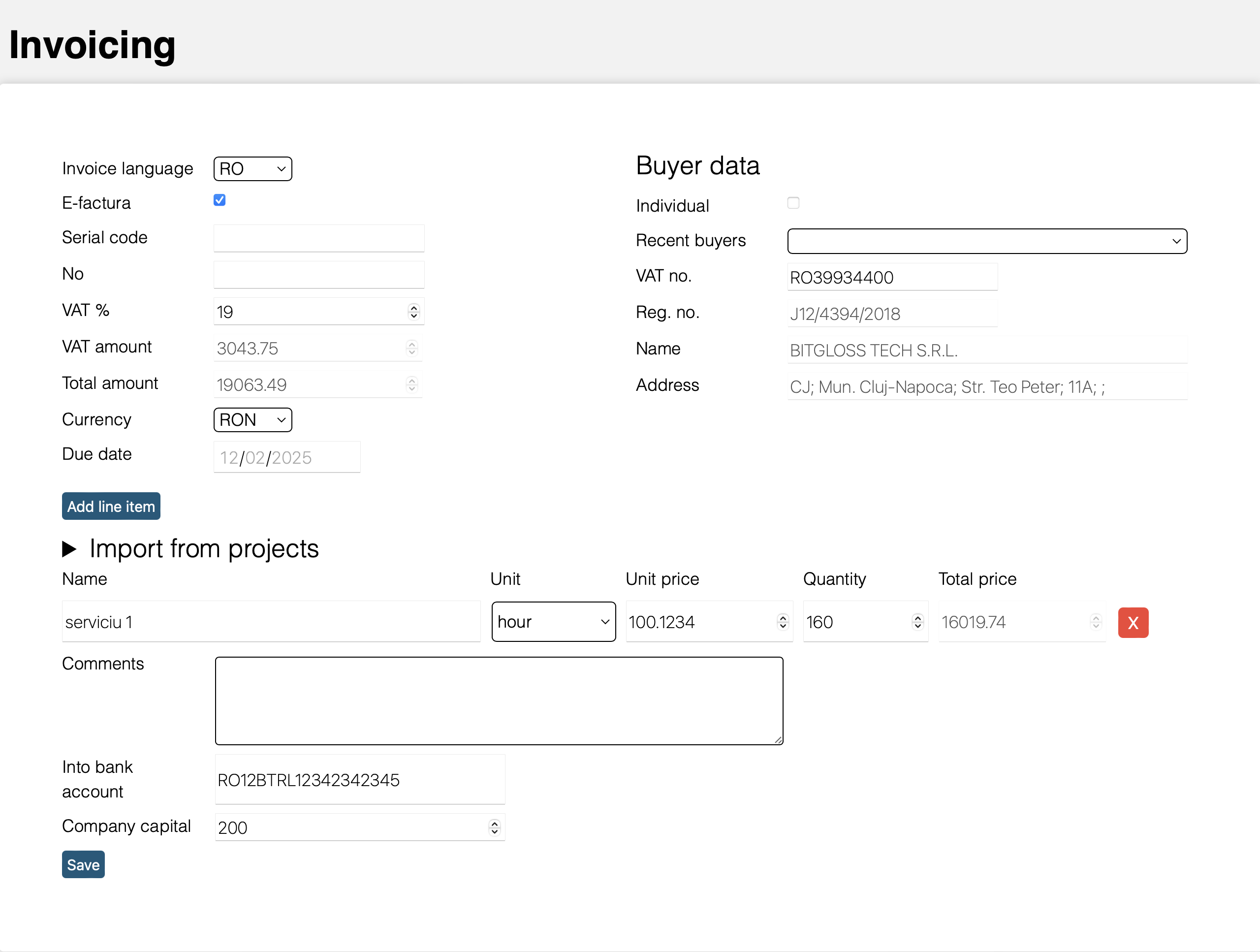 NOTE: the decimal separator must be a dot (not a comma).
When you save the invoice, it will show up in the "Invoice list (outgoing invoices)" section below.

Pressing the "Download" button will download the invoice as a PDF.
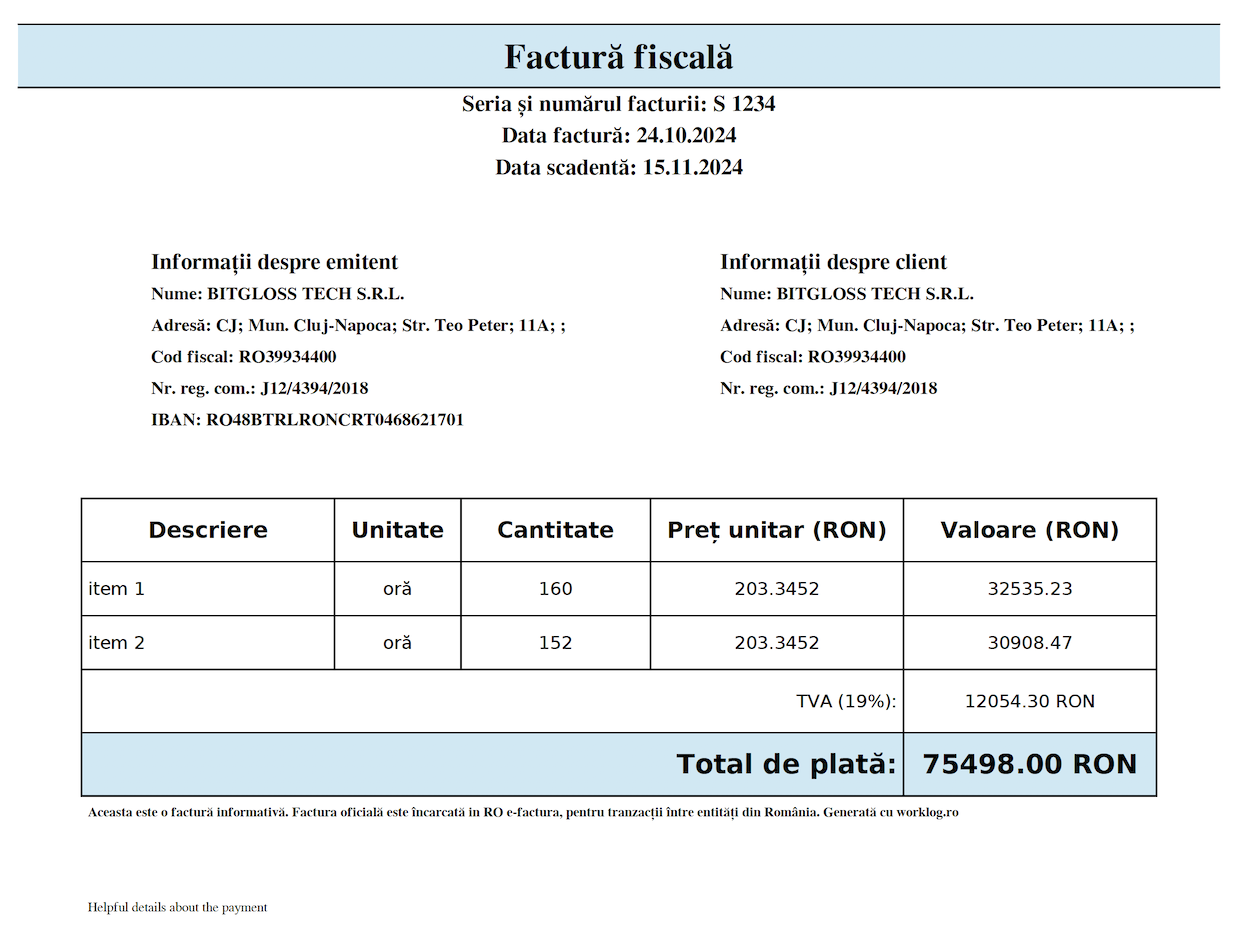 NOTE: notice the language of the PDF invoice is romanian, as selected in the "Language" dropdown.
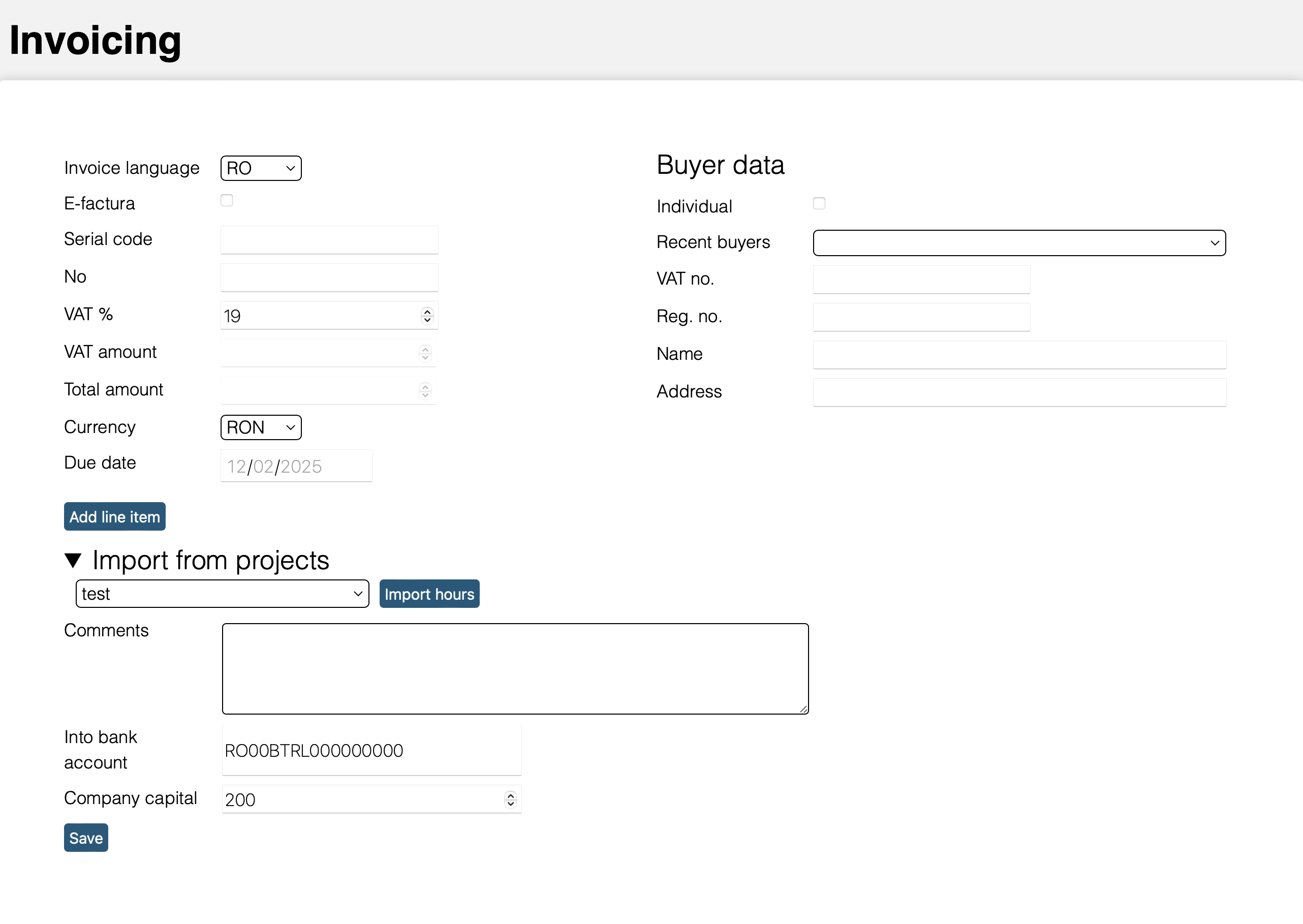
You can also import line items which are based on existing worklogs for a specific project.
Outgoing invoices:
By checking the "E-factura" checkbox, the invoice will be generated in a format that can be uploaded into the RO e-factura system and you will have an "Upload in e-factura" button available.

Clicking the "Upload in e-factura" button will send the invoice to the e-factura system.

When you come back to this page (or you refresh), you will see the invoice status and will be able to check the e-factura status.
 NOTE: e-factura does not process the uploaded invoice right away. It may take a few minutes for the invoice to be processed.
In this case, the status will be "EF_INPRELUCRARE".
NOTE: e-factura does not process the uploaded invoice right away. It may take a few minutes for the invoice to be processed.
In this case, the status will be "EF_INPRELUCRARE".
If the invoice is processed successfully, the status will be "EF_OK". Download e-factura by clicking the index (represents the SPV uploading index).

If the invoice is not processed successfully, the status will be "EF_NOK" and you will be able to download the error reponse, to see what went wrong.

Deleting a recently created invoice
You can only delete an invoice if it was created in the same day and it was not uploaded in the e-factura system. If it meets these conditions, you will have a "Delete" (red x) button available to the right of the invoice:
Reverse invoice
If you created an invoice and sent it to the customer, but you want to reverse it, you can do so by clicking the "Reverse" button.
You can also import local e-Factura XML files using the "Import local e-Factura" button from the outgoing invoices list. It opens a file picker for XML files and imports the invoices directly into worklog.ro. This is useful if you want to bring in invoices from other systems you used before. You can upload up to 5 invoices at once.
Incoming invoices:
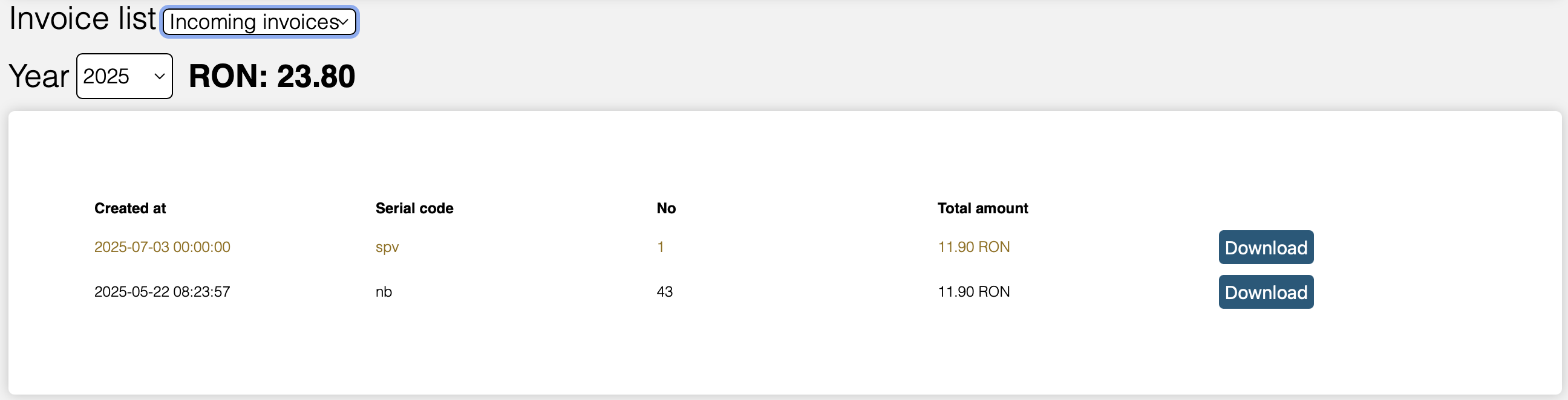
In this section, you can see the invoices you received from your customers. The invoices you received from an external system (other than worklog.ro) will be highlighted in a different color:
 NOTE: The verification of the invoices in SPV, received from external systems, is done automatically once every 24 hours.
If you received an invoice recently (less than 24 hours ago) and you don't see it, please come back after 24 hours.
NOTE: The verification of the invoices in SPV, received from external systems, is done automatically once every 24 hours.
If you received an invoice recently (less than 24 hours ago) and you don't see it, please come back after 24 hours.
<< Previous Next >>